How to Give Access in Google Tag Manager (Step-by-Step)
Learn how to share access to your Google Tag Manager account in just a few simple steps. A quick and secure guide for adding users and managing permissions.
In this guide, you’ll learn how to share access to your Google Tag Manager account in just a few easy steps.
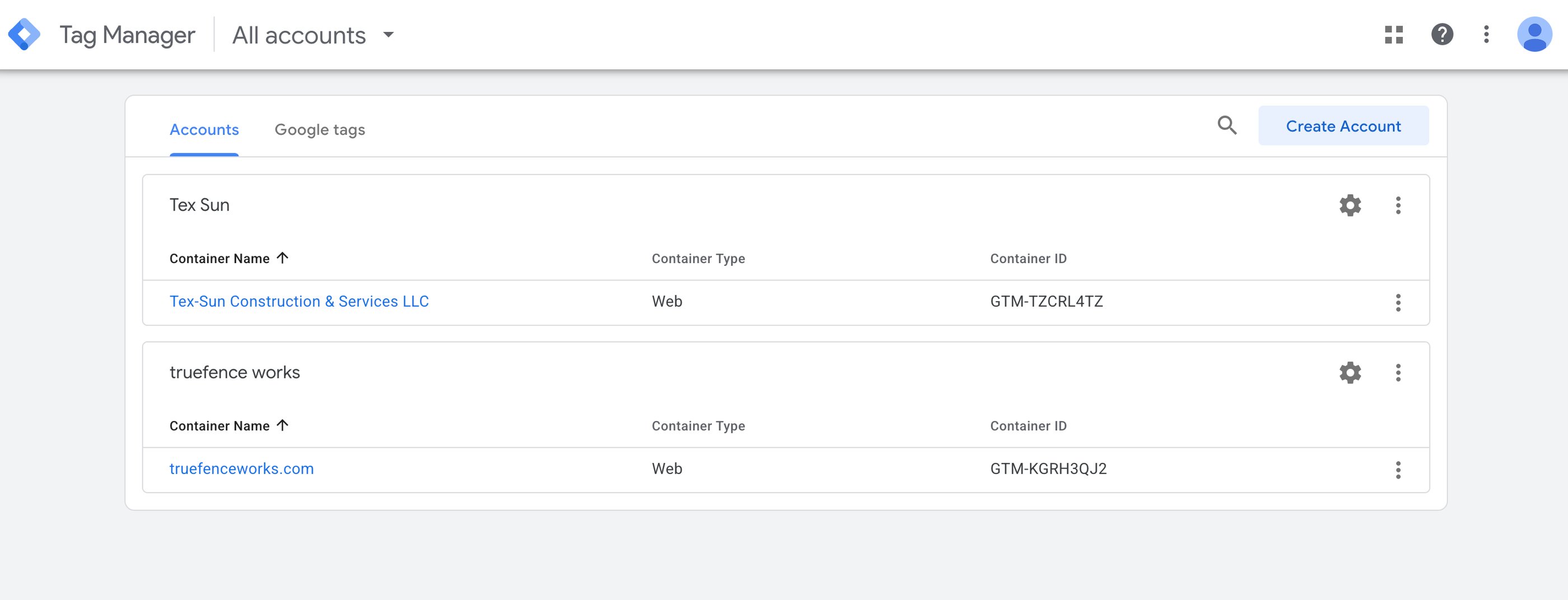
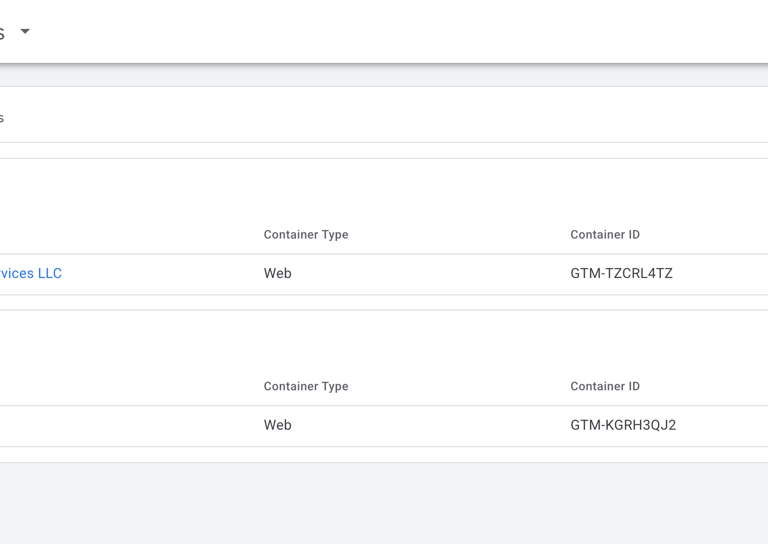
First, go to tagmanager.google.com and sign in to your account. Once you’re inside the dashboard, select the account and container you want to share access to.
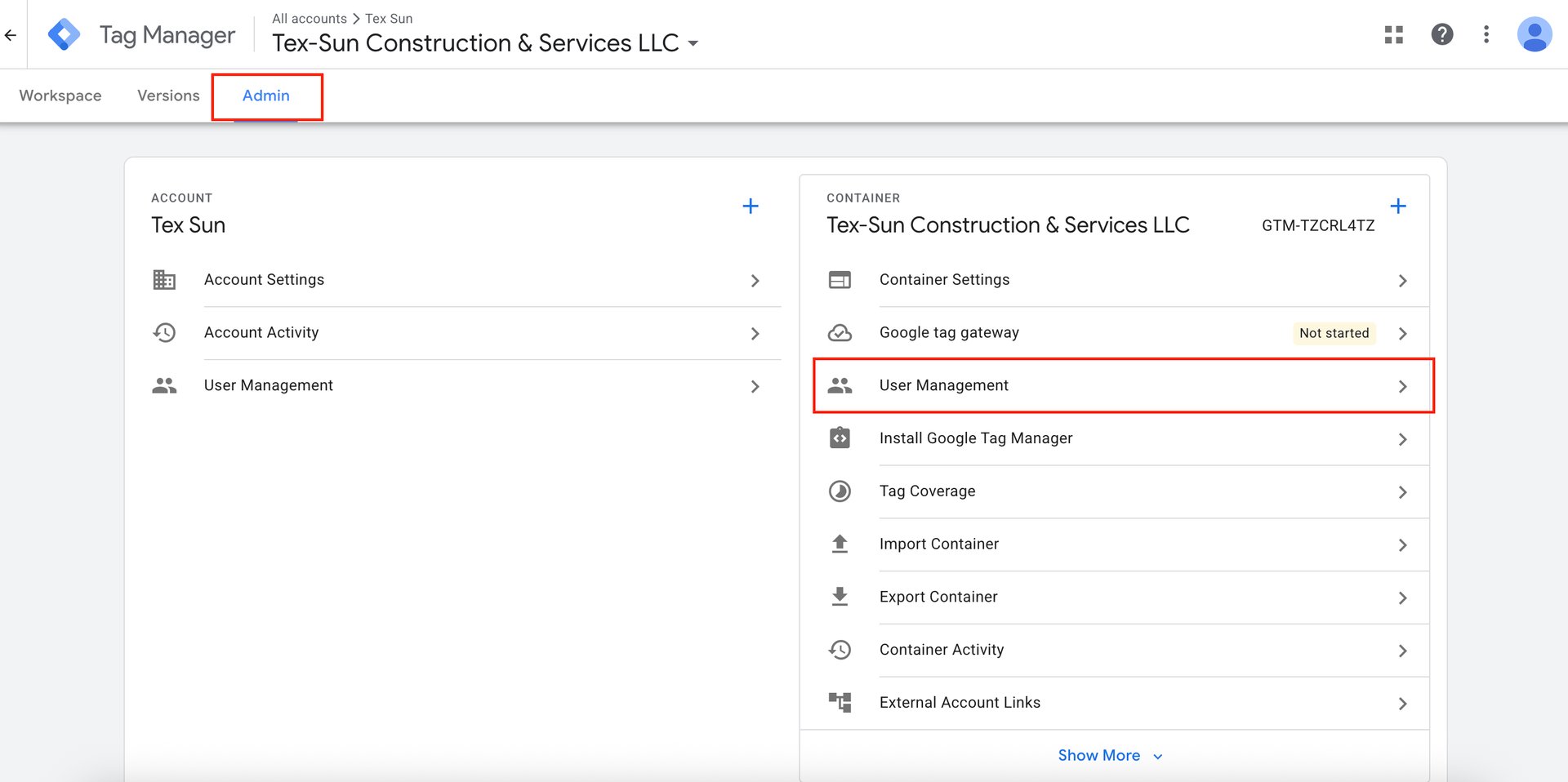
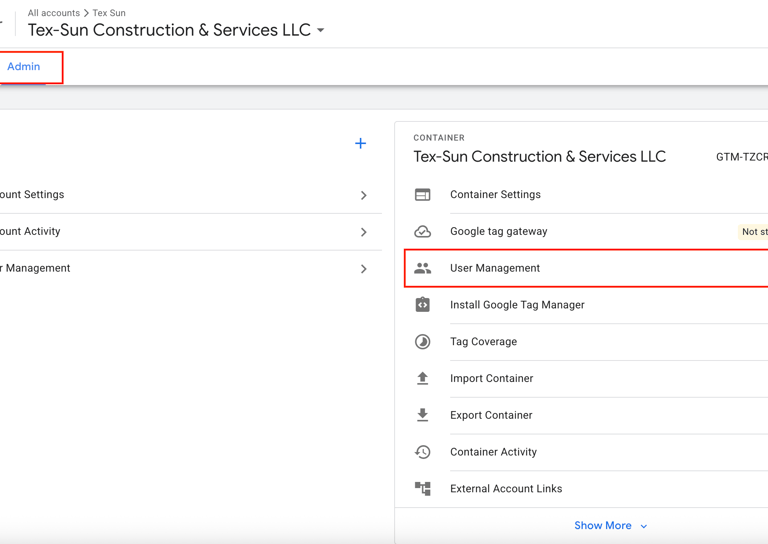
Next, click on Admin in the top navigation bar. Under the container settings, open User Management.
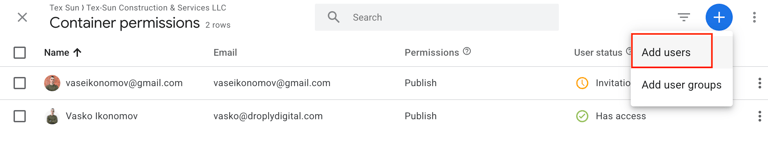
Here, click the Add users button and enter the email address of the person or agency you want to give access to.
After that, choose the appropriate permission level. In most cases, selecting Edit, Approve, and Publish is recommended so they can fully manage the container.
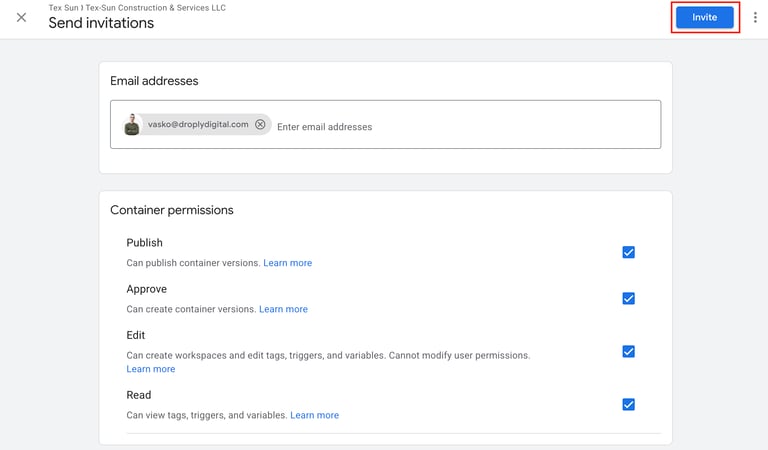
Finally, click Invite to send the access request. Once the invitation is accepted, the user will be able to access and manage your Google Tag Manager account.
Quick Links
Contacts
(888) 369-9036
vasko@droplydigital.com




CONTRACTORS! TIRED OF MISSING OUT ON JOBS?
Have you been receiving fewer phone calls lately? It’s probably because your competitors are stealing your work by showing up online where you’re not. If your website isn’t ranking or your business isn’t visible, you’re losing out on potential clients. We can help fix that!